One console for every camera and every detection, built for the person who actually has to run it — not a demo screen. Add a feed in minutes, review alerts with the evidence attached, and decide exactly what reaches your team and by what channel.
Paste the RTSP address, the stream is tested, pick the modules, draw the detection zone and save. Screen recording (demo environment); the camera frame is real.
No integrator visit required to onboard a camera, no rewiring the site. Point the wizard at any existing IP camera's RTSP stream and it's scoring frames the same day.
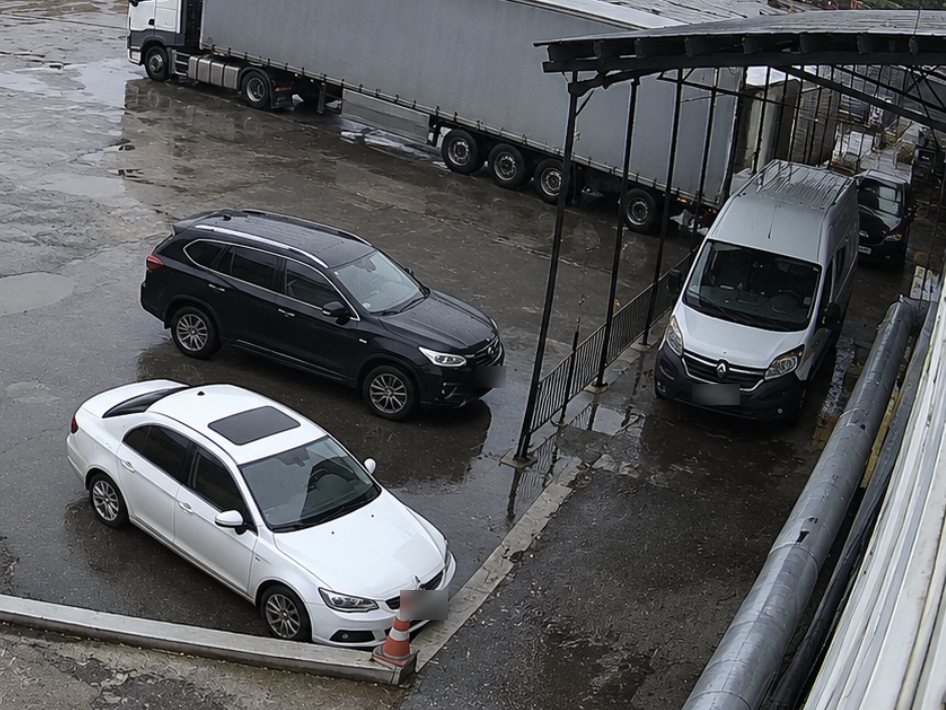
Enter the camera's details and its RTSP stream URL — nothing about your existing camera hardware changes. Tip: try rtsp:test.admin for a quick demo.
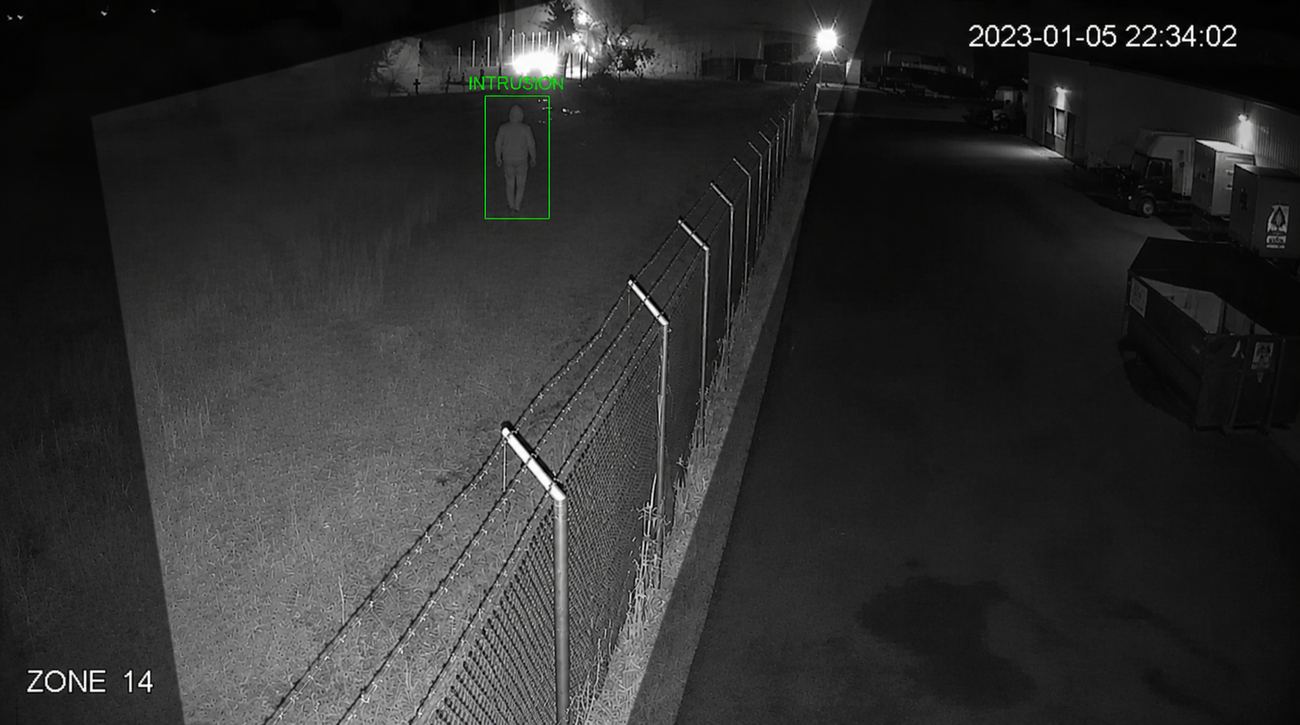
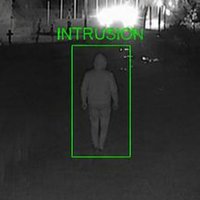
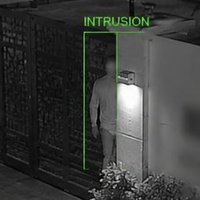
This is the part that decides whether a system stays trusted after month one. Every alert carries what the model actually saw — frame, bounding box, camera, zone, timestamp — so an operator can confirm it or dismiss it in one click instead of hunting for the clip in a VMS. Every disposition is logged against the operator who made it.
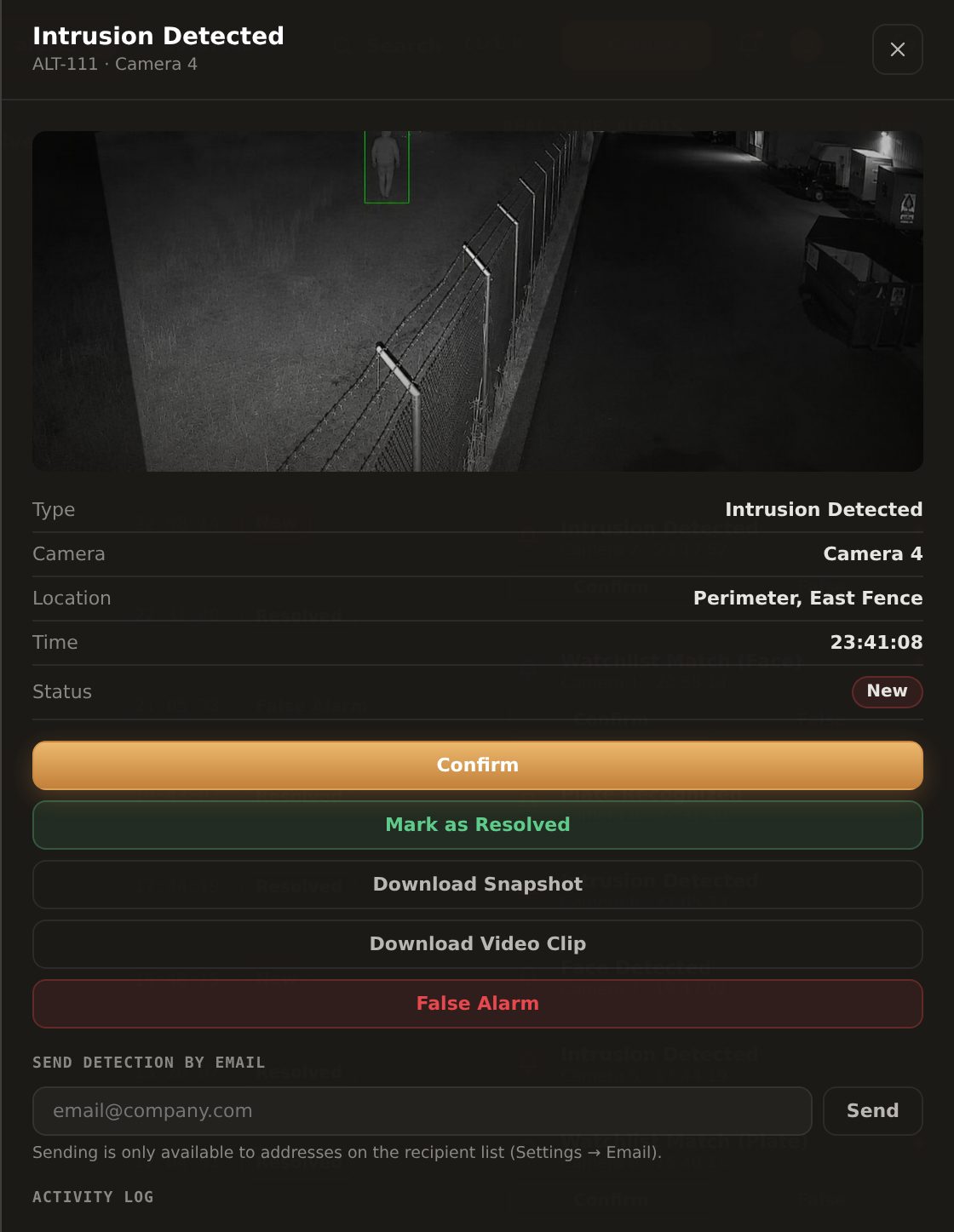
This is the alert-fatigue problem, solved at the policy layer: a rules engine sits between detection and notification so an operator's phone doesn't buzz for every branch that moves in the wind.
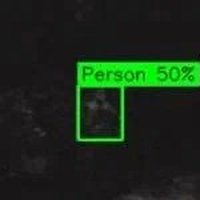
Detections below the confidence threshold you set are queued for review instead of paging the team — this is the control most responsible for keeping false-positive rates near zero.
Cap alerts per zone and mute expected activity by time window — a loading dock busy at 9 a.m. doesn't need to trigger the same rule it does at 2 a.m.
We'll run Vengeea on your own footage under NDA, on your actual scenarios, and walk you through the live dashboard end to end.